 With this, you actually have an AGC program that
does something, and does it both visibly and testably ... if not
very excitingly.
With this, you actually have an AGC program that
does something, and does it both visibly and testably ... if not
very excitingly.Actually, I lied in the title of this page and in item #7 of the list above. There's no profit, unless your own personal enjoyment and sense of accomplishment counts as profit. (Prove me wrong!) But the other topics, #1-5, are discussed further throughout the remainder of this page.
An important thing to know about "embedded programming", of which
AGC software is an example, is that there are two basic varieties
of embedded programming and embedded programmers:
The AGC is an odd case, because while it has very, very small
resources (tiny memory, terribly slow), it nevertheless has a
pretty capable operating system written but a bunch of smart
people. We will therefore cover both bare-metal programming
and operating-system-based programming. My advice would be
to start with the former until you're familiar with what you're
doing, and then graduate to the latter if it turns out you need to
do so.
Actually, the values in the list of input channels returned by inputsForAGx()
are something the Python language calls "tuples" or specifically,
3-tuples. Each 3-tuple has, as you may imagine, 3 parts:
The interpretations of the channel and value parts are probably obvious. The mask part indicates which bit positions of the value are valid. Only the bit positions of value for which the mask is 1 end up affecting the AGC's input channel, and the bit positions in the input channel corresponding to 0 in in the mask remain unchanged. This feature is needed in general because some input channels have bit-fields controlled by one peripheral device and other bit-fields controlled by other peripheral devices, and you don't want a peripheral device to change the wrong bits. For i/o channels you've defined yourself, of course, that probably isn't an issue, and the mask could always be 32767 (077777 octal).( channel, value, mask )
[ ( 0o45, 0o5, 0o00007), (0o46, 0o12345, 0o77777) ]Note that in Python 3, octal constants are prefixed by "0o".
As it happens, the sample peripheral program piPeripheral.py in our GitHub repository has been pepped up slightly from just a bare template. Additionally, it defines and processes several new i/o channels just to give examples of how to do so. This extra stuff is active only when the command-line switch --time=1 (or actually, --time=anything) is used, so you can easily eliminate it if you choose to build your own peripheral device starting from piPeripheral.py. Here's a list of these newly-assigned channels:
The input channels are actively generated by piPeripheral.py,
while the output channels merely have their contents printed
out. The AGC program processing the input channels (in which
the date and time is packed in a non-human-friendly way) might
use the output channels for reporting human-friendly unpacked date
& time data. Of course, the AGC program might choose to
do something else altogether or even nothing at all with these
extra channels.
And of course, the main idea behind providing the current time
and date in this way in the first place, is that it might serve as
the basis for using the AGC+DSKY as a clock widget on a computer
desktop. That's because we really mean the current
time, and we don't mean something like "time since powerup", which
is otherwise all that the AGC knows about on its own. This
idea of a clock app is continued in the next section.
SETLOC 4000But that's a bit of an over-simplification. The actual significance of address 04000 is that it's the start of an interrupt-vector table — i.e., of code which is instantly automatically executed whenever certain exceptional conditions occurs. For example, if the DSKY sends the AGC a keystroke, it instantly "vectors" to the code that's associated with that condition, and it's not something that your AGC program necessarily has to explicitly check for.
STARTUP # Do your own stuff from here on
SETLOC 4000Even here, we're still simplifying a bit, since what you'd find if you started filling in code after the label STARTUP is that your code might execute for a while and then just reset and start again at address 04000! What's up with that? Well, behind the scenes, the AGC hardware checks performs various checks to determine if the computer has somehow frozen up, and of course, yaAGC tries to perform whichever of those checks are appropriate as well. If it detects any of these conditions, it performs a jump to address 04000, just as if a power-up had occurred. That's one of the features that lends reliability to the device. This restart is known as a GOJAM. I'm not totally sure what all of the conditions that could trigger a GOJAM are, but LUMINARY Memo #225 contains a handy list of 8 of them. The ones that are relevant to software that you yourself write are these:
TCF STARTUP
NOOP
NOOP
NOOP
RESUME # T6RUPT
NOOP
NOOP
NOOP
RESUME # T5RUPT
NOOP
NOOP
NOOP
RESUME # T3RUPT
NOOP
NOOP
NOOP
RESUME # T4RUPT
NOOP
NOOP
NOOP
RESUME # KEYRUPT1
NOOP
NOOP
NOOP
RESUME # KEYRUPT2
NOOP
NOOP
NOOP
RESUME # UPRUPT
NOOP
NOOP
NOOP
RESUME # DOWNRUPT
NOOP
NOOP
NOOP
RESUME # RADAR RUPT
NOOP
NOOP
NOOP
RESUME # RUPT10
NOOP
NOOP
NOOP
STARTUP # Do your own stuff from here on!
Taking all of that into consideration, here's a minimal framework
you might use to start building your bare-metal AGC program:
# Definitions of various registers.
ARUPT EQUALS 10
QRUPT EQUALS 12
TIME3 EQUALS 26
NEWJOB EQUALS 67 # Location checked by the Night Watchman.
SETLOC 4000 # The interrupt-vector table.
# Come here at power-up or GOJAM
INHINT # Disable interrupts for a moment.
# Set up the TIME3 interrupt, T3RUPT. TIME3 is a 15-bit
# register at address 026, which automatically increments every
# 10 ms, and a T3RUPT interrupt occurs when the timer
# overflows. Thus if it is initially loaded with 037774,
# and overflows when it hits 040000, then it will
# interrupt after 40 ms.
CA O37774
TS TIME3
TCF STARTUP # Go to your "real" code.
RESUME # T6RUPT
NOOP
NOOP
NOOP
RESUME # T5RUPT
NOOP
NOOP
NOOP
DXCH ARUPT # T3RUPT
EXTEND # Back up A, L, and Q registers
QXCH QRUPT
TCF T3RUPT
RESUME # T4RUPT
NOOP
NOOP
NOOP
RESUME # KEYRUPT1
NOOP
NOOP
NOOP
RESUME # KEYRUPT2
NOOP
NOOP
NOOP
RESUME # UPRUPT
NOOP
NOOP
NOOP
RESUME # DOWNRUPT
NOOP
NOOP
NOOP
RESUME # RADAR RUPT
NOOP
NOOP
NOOP
RESUME # RUPT10
NOOP
NOOP
NOOP
# The interrupt-service routine for the TIME3 interrupt every 40 ms.
T3RUPT CAF O37774 # Schedule another TIME3 interrupt in 40 ms.
TS TIME3
# Tickle NEWJOB to keep Night Watchman GOJAMs from happening.
# You normally would NOT do this kind of thing in an interrupt-service
# routine, because it would actually prevent you from detecting
# true misbehavior in the main program. If you're concerned about
# that, just comment out the next instruction and instead sprinkle
# your main code with "CS NEWJOB" instructions at strategic points.
CS NEWJOB
# If you want to build in your own behavior, do it right here!
# And resume the main program
DXCH ARUPT # Restore A, L, and Q, and exit the interrupt
EXTEND
QXCH QRUPT
RESUME
STARTUP RELINT # Reenable interrupts.# Do your own stuff here!
# If you're all done, a nice but complex infinite loop that
# won't trigger a TC TRAP GOJAM.
ALLDONE CS NEWJOB # Tickle the Night Watchman
TCF ALLDONE
# Define any constants that are needed.
O37774 OCT 37774
So here you have simple framework with a few empty places in
which to insert your own code. Not to mention a few
interrupt vectors (such as the DSKY keypad interrupts, KEYRUPT1
and KEYRUPT2) that right now do nothing, but which you could
imagine might be very helpful.
What might the functionality for reading DSKY keystrokes look
like? Note that info about the i/o
channels pertaining to the DSKY are on the developer page.
Perhaps
you'd use the KEYRUPT1 interrupt-service routine to read the input
channel containing the DSKY keycode, and then store that keycode
in a variable. Your main program loop might periodically
check that variable to see it it contains anything, and then might
output something to the DSKY so you'd know it had been
detected. For example, it might toggle the DSKY's COMP ACTY
lamp every time there was a new keycode detected.
# Here's what the allocation of the variable to hold the keycode might look like.
# Plus, a variable that tells if COMP ACTY is currently on or off.
SETLOC 68
KEYBUF ERASE # 040 when empty, 0-037 when holding a code
CASTATUS ERASE # 0 if COMP ACTY off, 2 if on.
.
.
.
# Here's what the KEYRUPT1 interrupt-vector table entry might look like.
DXCH ARUPT # KEYRUPT1
EXTEND # Back up A, L, and Q registers
QXCH QRUPT
TCF KEYRUPT1.
.
.
# Here's what the actual interrupt-service code might look like.
KEYRUPT1 EXTEND
READ 15 # Read the DSKY keycode input channel
MASK O37 # Get rid of all but lowest 5 bits.
TS KEYBUF # save the keycode for later.
DXCH ARUPT # Restore A, L, and Q, and exit the interrupt
EXTEND
QXCH QRUPT
RESUME.
.
.
# Here's what it might look like in the main code.
STARTUP RELINT
# Initialization
CA NOKEY # Clear the keypad buffer variable
TS KEYBUF # to initially hold an illegal keycode.
CA ZERO
TS CASTATUS
.
.
.
# Occasionally check if there's a keycode ready, and toggle
# DSKY COMP ACTY if there is. Presumably this is inside of a
# loop.
CA NOKEY
EXTEND
SU KEYBUF # Acc will now be zero if no key, non-zero otherwise
EXTEND
BZF EMPTY
CA NOKEY
TS KEYBUF # Mark keycode buffer as empty.
CA CASTATUS # Toggle COMP ACTY.
EXTEND
BZF CAOFF
CA ZERO
TCF CATOGGLE
CAOFF CA TWO
CATOGGLE TS CASTATUS
EXTEND
WRITE 11 # Write to the DSKY lamps
EMPTY NOOP
.
.
.
# Constants
ZERO OCT 0
TWO OCT 2
O37 OCT 37 # Mask with lowest 5 bits set.
NOKEY OCT 40
With this, you actually have an AGC program that
does something, and does it both visibly and testably ... if not
very excitingly.
A slightly sleeker form of this code, called piPeripheral.agc,
which
can be assembled with yaYUL and actually works if it is run in
the AGC simulator, can be found in our GitHub repository.
Actually,
the code in GitHub is not merely a cleaned-up form of the
code above, but in fact implements processing of the
current-timestamp information the sample peripheral program
piPeripheral.py provides in the newly-minted AGC input channels
040-042. (See the end of the preceding section.) What
piPeripheral.agc does with that information (which is a packed
form of the date and time) is to:
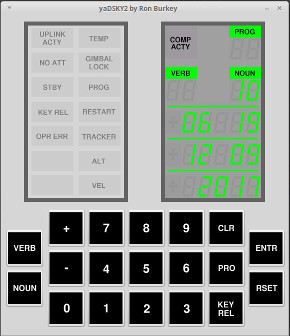
You can actually see what this looks like on a simulated DSKY in
the picture to right. What you see there is:
The piPeripheral.py program will have generated this data
according to the preference settings on the compuer on which
you're running it, which in my case is the U.S. CST time-zone ...
so yes, I was doing this at around 6 in the morning, local time,
on a Saturday. Yawn! I should be paid more (than the
$0 I currently get) for doing this lousy job. :-)
At any rate, assuming one has written such a custom AGC program,
a necessary step before being able to run it in the AGC simulator
is to assemble it with the yaYUL assembler. Exactly how to
find the assembler depends on the particular setup being used, but
assuming you can find it (or better yet, have it in the "PATH"),
assembly is a snap. But suppose, for example, that you
simply want to assemble piPeripheral.agc; assuming you've retained
the same directory setup as in GitHub, and have built the normal
Virtual AGC software too, you could do something like the
following without having to worry about path settings:
The result (if there were no errors, and hopefully there wouldn't be for an unmodified piPeripheral.agc) would be the executable file piPeripheral.agc.bin. If there were assembly errors such as syntax problems or unallocated variables, of course, then you have to fix them ... a topic on which it's difficult to offer any general advice other than to start with a small program that assembles perfectly and slowly work towards having a larger program.cd virtualagc/piPeripheral
../yaYUL/yaYUL piPeripheral.agc
Once the program is assembled, it can be run in the AGC
simulator. This is again a tricky topic, since there are a
variety of ways in which it can be done, and a variety of possible
system configurations. What you would do on a desktop PC is
undoubtedly not the same thing you'd do on the 3D-printed DSKY
mentioned earlier. However, to just do it from a command
line within our software tree as downloaded from GitHub and
successfully built from source, in Linux you could do the
following.
# Start up the AGC simulator with the custom AGC program, in the background, and discard all messages from it.
cd virtualagc/yaAGC
./yaAGC --core="../piPeripheral/piPeripheral.agc.bin" --port=19697 --cfg="../yaDSKY/src/LM.ini" &>/dev/null &
# Start up the DSKY simulator in the background and discard all messages from it.
cd ../yaDSKY2
./yaDSKY2 --cfg="../yaDSKY/src/LM.ini" --port=19698 &>/dev/null &
# Start up the custom peripheral device, in the foreground, and don't discard its messages. You might need
# to install some extra Python modules, such as "sudo pip3 install argparse", if this fails.
cd ../piPeripheral
./piPeripheral.py --port=19699 --time=1
# Now that the custom peripheral has been terminated, clean up the other programs we've started.
killall yaAGC yaDSKY2
On Mac OS, I think it would be a bit trickier than what I'm
written, since I don't think that yaDSKY2 as started this way
would actually accept any keypress events; I'm not sure quite how
to do it properly, though. On Windows, you would have to use
backslashes ('\') in places of the forward slashes if used here
('/'); also, I don't know that using '&' to put the programs
into the background would work, or that "killall" would be
available for killing those programs afterward, so you might want
to run the various programs all in the foreground, in separate
command-line consoles. But obviously, there's a way to do
it, even if I'm too personally lazy to figure it out just
yet. If anyone just wants to inform me of the correct
detailed way of doing things on Mac OS X or Windows, I'd be happy
to include that info here.
This section is under construction.
Beware!
Unfortunately, after some fairly-diligent searching in our document library, I find no convenient tutorial or how-to on writing apps operating under the AGC's multitasking executive. So in this section, I try to cobble together a mini-tutorial on the subject. Alas, I'm no expert, so don't trust my explanation to be either 100% complete or correct, and there may be errors in my meanderings. Feel free to let me know when I've strayed from the facts. I'll confine my remarks to the Block II AGC, though I'm sure that similar considerations apply to Block I systems. (I'm only finite, after all, and these days maybe even less so! If I ever write an autobiography, perhaps I'll title it Less Than Finite.)Aside: For the AGC, there's actually a third approach that's a hybrid of the bare-metal and operating-system approaches, in that it's possible to request the operating system to periodically run a specified task via the AGC's hardware timers that the operating system itself is already controlling. That's done via the idling program's (P00) "request waitlist" (VERB 31) facility. This hybrid approach is available, I think, principally for activating so-called Erasable Memory Programs (EMPs) that are uploaded supplements for the released programs stored in unalterable core memory. I won't cover any of that here, but you can read about it elsewhere.
Important Note: An idea that I may have occasionally promoted myself is providing a new program that's a game, for the purpose of providing the astronauts with at least a little recreation. There's an interesting drawback to that plan, a drawback which it's likely that many other ideas for additional AGC apps may have as well: When the operating system is present, you don't have arbitrary control over what's displayed on the DSKY, nor arbitrary access to the keystrokes received by the DSKY keypad. Rather, the appearance, interpretation, and timing of all of these are controlled by the operating system's PINBALL GAME BUTTONS AND LIGHTS program, and PINBALL works with the display and keyboard entirely under the overarching concept of PROGs, VERBs, and NOUNs. For example, suppose you wanted to provide a Tic Tac Toe game, something which is perfectly possible in bare-metal programming where you have unfettered direct access to all DSKY facilities; the hyperlinked Tic Tac Toe game freely displays numbers on the DSKY, and accepts arbitrary combinations of keypresses +, -, and 0-9. Such a game would have to have a very different user interface if working under the operating system, in which the VERT or NOUN keys would have to be used liberally as well.Nice though aesthetically-horrifying documentation of the multitasking executive system itself can be found in Section II of the LM Primary Guidance Navigation and Control System Study Guide. Indeed, if you can stomach it, it would be worthwhile looking through the entire study guide before proceeding, because it contains a lot of useful details and context that I'm not going to cover below. Note, though, that the study guide was released in January 1967, and some of the information in it, however useful, is not necessarily 100% complete or correct in detail for later versions of AGC flight software. And I wish we had a much cleaner version of the document for you than our only-marginally-readable one, but we don't.
Aside: The Virginia Tech University Libraries, in the James J. Avitabile Papers collection, seem to have a clean copy of the document, in a more-current version than ours. Indeed, VT's collection seems also to have the corresponding CM document. Alas, I don't know any convenient way to my hands on either of these documents for online posting. Anyone wishing to perform a public service and with the stamina to wade through the system should get them for us! Here are the relevant excerpts from the VT finding aid (highlighting mine):
By the way, in the sections that follow, I've provided links to LUMINARY 99/1 (Apollo 11) source code whenever I want to refer to operating-system behavior, but that choice is rather arbitrary and the behavior of your chosen AGC software version could differ in some details.box-folder 17 folder: 2-4
Lunar Module Primary Guidance and Navigation and Control System Student Study Guide
1967
Scope and Content
Content
Familiarization Course (Revision A), Jan. 20, 1967 (2 folders)
System Mechanization, Jan. 27, 1967 (5 folders)
Computer Utility Programs (Revision A), Apr. 5, 1967 (3 folders)
box-folder 18 folder: 1-2
Command Module Primary Guidance and Navigation and Control System Student Study Guide
1966
Scope and Content
Content
Familiarization Course (Revision A), Feb. 15, 1967 (3 folders)
Computer Utility Programs, Mar. 2, 1967 (3 folders)
Each app ("program", "major mode", "MM") installed in the operating system is identified by a unique two-digit decimal number that's used to activate the app. For example, to activate the idling routine (P00), the astronaut keys VERB 37 ENTR 0 0 ENTR into the DSKY, at which point the DSKY displays that the "PROG" is 00 to indicate that the idling routine is currently active. If your new app is ever going to be activated by the astronaut, it too must be associated with one of these 2-digit code numbers, different from all of the preexisting apps.Note: Step 5 below describes how to automatically start your app when the AGC starts or restarts. Steps 2 and 3, I believe, are relevant to the situation in which you'd like the astronaut to be able to manually start your app via the commonly-used method of VERB 37 ("change major mode") on the DSKY. If you want only to have your app autostart, then perhaps you can skip Steps 2 and 3, and proceed directly to Step 4 below. Even if you skip these steps, I think it should still be possible to start your app from the DSKY, using the more-obscure and more-irksome process of getting into idling mode (VERB 37 ENTR 00 ENTR), starting a "request executive" operation (VERB 30 ENTR), and then supplying low-level characteristics of the multitasking job you want to start (NOUN 26), such as the job priority, whether a VAC is needed, the starting address of your app, and the fixed/erasable memory banks associated with your app. As it happens, these are all of the same kinds of data you need for Step 3 below, so there may not be much advantage in skipping past it. An advantage of this alternate approach is that (I think!) it allows your app's code to be located in the memory superbanks 40-43, whereas the approach I outline below does not. Anyway, you can read more about this alternative method of starting your app from the DSKY here.
Unfortunately, we have only a limited selection of these kinds of
documents in the library, and certainly don't have them for every
mission you might choose to use as your "operating system", so you
may still have to resort to determining the interpretations of the
2-digit program codes the hard way.
For AGC software versions other than ARTEMIS or SKYLARK, there
are 3 tables:
Additionally, at label NOV37MM, there is a count of the
number of entries in the tables, which is the number of major
modes minus 1 (for the ubiquitous mod 00). So when you add
entries to the tables listed above to include your new app, you
have to increment the value at NOV37MM by 1.
Note that these steps are inverted if/when you choose to delete
existing major modes in order to recover memory. I.e.,
entries for the programs you remove must also be deleted from the
three tables, and NOV37MM must be decremented for each
program removed.
For ARTEMIS or SKYLARK, on the other hand, job priorities are
omitted from table PREMM1, which which saves enough bits
to allow tables PREMM1 and DNLADMM1 to be
consolidated. This saves memory, but makes it harder for you
to define your own custom telemetry downlists, if you desired to
do so. The value for NOV37MM is figured
automatically by the assembler, so you do not have to maintain it.
You can add the new code directly into an existing source-code
file for your chosen "operating system", or else you can create a
new AGC source-code file and store it in the same folder with all
of the other source files for your chosen operating system.
If you do want to create a new source-code file, as I imagine is
probably the case, be sure to add it in MAIN.agc to all of the
other source-code files comprising the operating system. Add
the new file to the end of the list of source-code files
(in MAIN.agc), to insure that the assembled forms of the
preexisting files retain similar addressing to what they had
before your new code was added, rather than all being displaced
upward in memory to accommodate the new code. (They may or
may not be somewhat displaced anyway, due to adding new entries in
the major-mode tables as described above, or other modifications
described below.)
What are the characteristics you need to build into your app's
source code to exist harmoniously in the operating system?
That's what the subsections below cover.
Your new source code should begin by telling the assembler to
place the code in the memory banks you've chosen. For the
sake of discussion, let's suppose that:
Simple-minded code for your app's lead-in might look like this:
        BANK 15
	EBANK= 4
MYAPP   ...
	.
	.
	.
I call this code "simple-minded", because in practice you might
find that it's better practice to use symbolic names for the
memory banks, rather than hard-coding the constants 15 and 4, and
there are additional pseudo-ops than just BANK and EBANK=
to accomplish this. But simple-minded way is certainly a
valid approach.
The code for your app can use either basic assembly language or
interpreter language, or intermix them. Note that each job
being multitasked by the EXECUTIVE —
including your own app — is assigned its own separate "vector
accumulator" (VAC) for use with interpreted code. In other
words, interpretive code in your app has a VAC that does not
conflict with the VAC of other running jobs.
Multitasking in the AGC "operating system" is cooperative rather
than preemptive. In other words, the EXECUTIVE doesn't
successively give competing jobs time-slices for execution and
forcibly change control from one job to another when those
time-slices are complete. Apparently, time-slices do not
exist as such. Rather, each job (such as your app) must
periodically check whether a job of a higher priority is pending,
and meekly return control the EXECUTIVE if so. But if no
higher-priority job is pending, the currently-executing job can
just keep going as long as it likes without surrendering to the
executive.
Aside: The operating system's multitasking scheme should not be confused with low-level interrupt-driven software that performs operations such as servicing hardware timers, asynchronously getting keystrokes from the DSKY or uplink, and so on. CPU interrupt servicing is a completely separate mechanism from operating-system multitasking. But for example, an interrupt-service routine operating from a CPU timer could schedule a high-priority multitasked job, which would later cause a lower-priority multitasked job to relinquish control to the EXECUTIVE.
A pending job of higher priority is communicated to the
currently-executing job via the NEWJOB variable, which
will have either the value +0 (to indicate that there is no
higher-priority job) or a value >0 (to indicate that there is
indeed a higher-priority job pending). Negative (or -0)
values never appear. While there are a number of ways to
respond to these conditions, a typical technique is for each job
to periodically use the code
	# If in the midst of a block of basic assembly-language code.
	CCS	NEWJOB
	TC	CHANG1
or else
# If in the midst of a block of interpreter-language code.When the EXECUTIVE eventually returns control to your app, execution will resume at the location following the TC CHANGx instruction.
CCS NEWJOB
TC CHANG2
There are conditions under which your app may wish to voluntarily
return control to the EXECUTIVE and put itself to sleep. For
example, it might want to wait on i/o without hogging CPU cycles
that could profitably be used by other jobs. Your app does
this using code similar to the following:
CAF ... address at which to reenter at next time-slice ...or
TCF JOBSLEEP
	CAF	... address at which to reenter at next time-slice ...
	TC	JOBSLEEP
Once your app is asleep, however, it will no longer receive time-slices and hence will no longer execute until some code external to it wakes it up by means of a call to JOBWAKE.
If your app isn't intended to run forever, then eventually you'll
want your app to terminate itself and receive no additional time
slices. Your app does this like so:
TCF ENDOFJOBor
TC ENDOFJOB
Access to the DSKY (display/keyboard) is provided by the
flight-software in the following flight-software code sections:
The DISPLAY_INTERFACE_ROUTINES are built atop the
more-fundamental PINBALL_GAME_BUTTONS_AND_LIGHTS functionality.
You would think that given the overwhelming importance of these
routines, there would be documentation someplace in the form of a
tutorial that told you how to incorporate them into your
program. Alas, that does not appear to be the case, so we'll
have to work out our own guide.
When programming an app that runs under the AGC "operating
system", your code does not have an unrestricted ability to read
keystrokes from the DSKY, nor to display whatever it likes on the
DSKY's display. In point of fact, it cannot detect those
keystrokes at all. Rather, all access of the DSKY is modeled
on the notion of "verbs" and "nouns" that pervades all discussion
of how the astronauts interact with the DSKY, and all interactions
with the DSKY are forced by PINBALL into that basic scheme.
"Verbs" and "nouns" in this context refer not to English words
that are verbs or nouns, but rather to 2-digit codes recognized by
the operating system. The different verbs refer to the context
of the data is going to be input or output; i.e., to how that data
is used. Whereas the different nouns refer to the format
of that data.
For example: Suppose the desired user interface of
your app does nothing but waits for the astronaut to key in an
endless sequence of octal numbers on the DSKY keypad. Efficient
input via the DSKY would look like this:
... the first octal number ... ENTR
... the second octal number ... ENTR
... the third octal number ... ENTR
etc.
But there is no way to implement such a thing under the AGC
operating system. Rather, the astronaut must either input
this data via the specific "verbs" and "nouns" already defined by
the AGC operating system, or else your app must implement new
previously-nonexistent types of verbs and nouns. Using
existing verbs and nouns, the astronaut might enter the
data via the keystrokes
VERB 21 NOUN 46 ... the first octal number ... ENTR
VERB 21 NOUN 46 ... the second octal number ... ENTR
VERB 21 NOUN 46 ... the third octal number ... ENTR
etc.
But regardless of the particular verbs and nouns used, your app
is never informed by the operating system that the VERB key has
been pressed, nor that the NOUN key has been pressed, nor the ENTR
key, nor any of the digit keys; only that a complete, new number
is now available. Nor does your app control where or how or
even if these digits are displayed on the DSKY while the
astronaut is inputting the data.
The types of verbs and nouns recognized by the operating system
evolved somewhat over the evolution of the AGC flight software, so
it's not possible to give a single authoritative list of
them. Instead, you have to consult the source code or
documentation for the specific AGC software version you've chosen
to use as your operating system. That said, it was usually
the case that new types of verbs or nouns were merely added over
time, rather than that the interpretation of any given verb or
noun changed. Thus there plenty of verbs and nouns (like the
VERB 21 and the NOUN 46 in the example above) that were
identically present in all AGC software versions.
The
study guide tells us that "The VERB codes are divided into
two groups — Ordinary and Extended. The ordinary verbs generally
are involved in the manipulation (loading, display, etc.) of data.
The extended verbs, in general, are used for initiation of actions
(moding requests, equipment operation, etc.)." You'll also
see the term "regular verbs" as a synonym for "ordinary
verbs". Additionally:
Here, for example, are the complete verb tables from SUNDANCE
306, in which (barring miscounts on my part) you can see 11 spare
regular verbs and 15 spare extended verbs which you could
potentially define anew for your app. The entries in the
table, obviously, point to subroutines implementing the particular
types of verbs.
VERBTAB         CADR    GODSPALM        # VB00 ILLEGAL
                CADR    DSPA            # VB01 DISPLAY OCT COMP 1 (R1)
                CADR    DSPB            # VB02 DISPLAY OCT COMP 2 (R1)
                CADR    DSPC            # VB03 DISPLAY OCT COMP 3 (R1)
                CADR    DSPAB           # VB04 DISPLAY OCT COMP 1,2 (R1,R2)
                CADR    DSPABC          # VB05 DISPLAY OCT COMP 1,2,3 (R1,R2,R3)
                CADR    DECDSP          # VB06 DECIMAL DISPLAY
                CADR    DSPDPDEC        # VB07 DP DECIMAL DISPLAY (R1,R2)
                CADR    GODSPALM        # VB08 SPARE
                CADR    GODSPALM        # VB09 SPARE
                CADR    DSPALARM        # VB10 SPARE
                CADR    MONITOR         # VB11 MONITOR OCT COMP 1 (R1)
                CADR    MONITOR         # VB12 MONITOR OCT COMP 2 (R1)
                CADR    MONITOR         # VB13 MONITOR OCT COMP 3 (R1)
                CADR    MONITOR         # VB14 MONITOR OCT COMP 1,2 (R1,R2)
                CADR    MONITOR         # VB15 MONITOR OCT COMP 1,2,3 (R1,R2,R3)
                CADR    MONITOR         # VB16 MONITOR DECIMAL
                CADR    MONITOR         # VB17 MONITOR DP DEC  (R1,R2)
                CADR    GODSPALM        # VB18 SPARE
                CADR    GODSPALM        # VB19 SPARE
                CADR    GODSPALM        # VB20 SPARE
                CADR    ALOAD           # VB21 LOAD COMP 1 (R1)
                CADR    BLOAD           # VB22 LOAD COMP 2 (R2)
                CADR    CLOAD           # VB23 LOAD COMP 3 (R3)
                CADR    ABLOAD          # VB24 LOAD COMP 1,2 (R1,R2)
                CADR    ABCLOAD         # VB25 LOAD COMP 1,2,3 (R1,R2,R3)
                CADR    GODSPALM        # VB26 SPARE
                CADR    DSPFMEM         # VB27 FIXED MEMORY DISPLAY
                CADR    GODSPALM        # VB28 SPARE
                CADR    GODSPALM        # VB29 SPARE
                CADR    VBRQEXEC        # VB30 REQUEST EXECUTIVE
                CADR    VBRQWAIT        # VB31 REQUEST WAITLIST
                CADR    VBRESEQ         # VB32 RESEQUENCE
                CADR    VBPROC          # VB33 PROCEED WITHOUT DATA
                CADR    VBTERM          # VB34 TERMINATE CURRENT TEST OR LOAD REQ
                CADR    VBTSTLTS        # VB35 TEST LIGHTS
                CADR    SLAP1           # VB36 FRESH START
                CADR    MMCHANG         # VB37 CHANGE MAJOR MODE
                CADR    GODSPALM        # VB38 SPARE
                CADR    GODSPALM        # VB39 SPARE
LST2FAN         TC      VBZERO          # VB40 ZERO (USED WITH NOUN 20 OR 72 ONLY)
                TC      VBCOARK         # VB41 COARSE ALIGN (USED WITH NOUN 20 OR 72 ONLY)
                TC      IMUFINEK        # VB42 FINE ALIGN IMU
                TC      IMUATTCK        # VB43  LOAD IMU ATTITUDE ERROR METERS.
                TC      RRDESEND        # VB44 TERMINATE CONTINUOUS DESIGNATE
                TC      V45             # VB45 W MATRIX MONITOR
                TC      ALM/END         # VB46 SPARE
                TC      V47TXACT        # VB47 AGS INITIALIZATION
                TC      DAPDISP         # VB48  LOAD A/P DATA
                TCF     CREWMANU        # VB49 START AUTOMATIC ATTITUDE MANEUVER
                TC      GOLOADLV        # VB50 PLEASE PERFORM
                TC      ALM/END         # VB51 SPARE
                TC      GOLOADLV        # VB52 PLEASE MARK X - RETICLE.
                TC      GOLOADLV        # VB53 PLEASE MARK Y - RETICLE.
                TC      GOLOADLV        # VB54 PLEASE MARK X OR Y - RETICLE
                TC      ALINTIME        # VB55 ALIGN TIME
                TC      TRMTRACK        # VB56 TERMINATE TRACKING - P20 + P25
                TC      ALM/END         # VB57 SPARE
                TC      ALM/END         # VB58 SPARE
                TC      ALM/END         # VB59 SPARE
                TC      DAPATTER        # VB60 DISPLAY DAP ATTITUDE ERROR
                TC      LRPOS2K         # VB61 COMMAND LR TO POSITION 2.
                TC      R04             # VB62 SAMPLE RADAR ONCE PER SECOND
                TC      TOTATTER        # VB63 DISPLAY TOTAL ATTITUDE ERROR
                TC      ALM/END         # VB64 SPARE
                TC      SNUFFOUT        # VB65 DISABLE U,V JETS DURING DPS BURNS.
                TC      ATTACHED        # VB66 ATTACHED   MOVE THIS TO OTHER STATE
                TC      ALM/END         # VB67 SPARE
                TC      ALM/END         # VB68 SPARE
                TC      VERB69          # VB69 FORCE A HARDWARE RESTART
                TC      V70UPDAT        # VB70 UPDATE LIFTOFF TIME.
                TC      V71UPDAT        # VB71 UNIVERSAL UPDATE - BLOCK ADDRESS.
                TC      V72UPDAT        # VB72 UNIVERSAL UPDATE - SINGLE ADDRESS.
                TC      V73UPDAT        # VB73 UPDATE AGC TIME (OCTAL).
                TC      DNEDUMP         # VB74 INITIALIZE DOWN-TELEMETRY PROGRAM FOR ERASABLE DUMP.
                TC      OUTSNUFF        # VB75 ENABLE U,V JETS DURING DPS BURNS.
                TC      MINIMP          # VB76 MINIMUM IMPULSE MODE
                TC      NOMINIMP        # VB77 RATE COMMAND MODE
                TC      R77             # VB78 START LR SPURIOUS RETURN TEST
                TC      R77END          # VB79 TERMINATE LR SPURIOUS RETURN TEST
                TC      LEMVEC          # VB80 UPDATE LEM STATE VECTOR
                TC      CSMVEC          # VB81 UPDATE CSM STATE VECTOR
                TC      V82PERF         # VB82 REQUEST ORBIT PARAM DISPLAY (R30)
                TC      V83PERF         # VB83 REQUEST REND PARAM DISPLAY (R31)
                TC      R32             # VB84 START TARGET DELTA V (R32)
                TC      ALM/END         # VB85 SPARE
                TC      ALM/END         # VB86 SPARE
                TC      ALM/END         # VB87 SPARE
                TC      ALM/END         # VB88 SPARE
                TC      V89PERF         # VB89 ALIGN XORZ LEM AXIS ALONG LOS (R63)
                TC      V90PERF         # VB90 OUT OF PLANE RENDEZVOUS DISPLAY
                TC      GOSHOSUM        # VB91 DISPLAY BANK SUM.
                TC      SYSTEST         # VB92 OPERATE IMU PERFORMANCE TEST.
                TC      WMATRXNG        # VB93 CLEAR RENDWFLG
                TC      ALM/END         # VB94 SPARE
                TC      UPDATOFF        # VB95 NO STATE VECTOR UPDATE ALLOWED
                TC      VERB96          # VB96 INTERRUPT INTEGRATION AND GO TO POO
                TC      ALM/END         # VB97 SPARE
                TC      ALM/END         # VB98 SPARE
                TC      GOLOADLV        # VB99 PLEASE ENABLE ENGINE
Nouns, meanwhile, are categorized as either "normal" (codes 00-39) or "mixed" (codes 40-99). The distinction, as explained by the study guide is that "Normal Nouns refer to data stored in sequential memory registers and the data contained in or to be loaded into these registers must use the same scaling. ... The other type of noun code, the Mixed Noun, refers to data which is not necessarily located in sequential memory registers nor necessarily use the same scaling." And as with the verbs, these may differ a little from one incarnation of the AGC flight software to the next. For all AGC versions concerning us here, the nouns are implemented primarily in PINBALL NOUN TABLES (look for the tables at labels NNADTAB and NNTYPTAB) and documented in ASSEMBLY AND OPERATION INFORMATION (and often in the study guide). The NNADTAB table points to subroutines implementing the individual nouns, whereas the NNTYPTAB table entries for those same nouns are numerical values whose bitfields provide the formats for up to 3 numerical components (corresponding to the 3 5-digit registers displayed on the DSKY). For illustrative purposes, the SUNDANCE 306 NNTYPTAB table reads:
                                                        # NN        NORMAL NOUNS
NNTYPTAB        OCT             00000                   # 00 NOT IN USE
                OCT             04040                   # 01 3COMP  FRACTIONAL
                OCT             04140                   # 02 3COMP  WHOLE
                OCT             04102                   # 03 3COMP  CDU DEGREES
                OCT             00000                   # 04        SPARE
                OCT             00504                   # 05 1COMP  DPDEG(360)
                OCT             02000                   # 06 2COMP  OCTAL ONLY
                OCT             04000                   # 07 3COMP  OCTAL ONLY
                OCT             04000                   # 08 3COMP  OCTAL ONLY
                OCT             04000                   # 09 3COMP  OCTAL ONLY
                OCT             00000                   # 10 1COMP  OCTAL ONLY
                OCT             00000                   # 11        SPARE
                OCT             00000                   # 12        SPARE
                OCT             00000                   # 13        SPARE
                OCT             04140                   # 14 3COMP  WHOLE
                OCT             00000                   # 15 1COMP  OCTAL ONLY
                OCT             24400                   # 16 3COMP  HMS (DEC ONLY)
                OCT             04102                   # 17 3COMP  CDU DEG
                OCT             04102                   # 18 3COMP  CDU DEG
                OCT             04102                   # 19 3COMP  CDU DEG
                OCT             04102                   # 20 3COMP  CDU DEGREES
                OCT             04140                   # 21 3COMP  WHOLE
                OCT             04102                   # 22 3COMP  CDU DEGREES
                OCT             00000                   # 23        SPARE
                OCT             24400                   # 24 3COMP  HMS (DEC ONLY)
                OCT             04140                   # 25 3COMP  WHOLE
                OCT             04000                   # 26 3COMP  OCTAL ONLY
                OCT             00140                   # 27 1COMP  WHOLE
                OCT             00000                   # 28        SPARE
                OCT             00000                   # 29 1COMP  OCTAL ONLY
                OCT             24400                   # 30 3COMP  HMS (DEC ONLY)
                OCT             24400                   # 31 3COMP  HMS (DEC ONLY)
                OCT             24400                   # 32 3COMP  HMS (DEC ONLY)
                OCT             24400                   # 33 3COMP  HMS (DEC ONLY)
                OCT             24400                   # 34 3COMP  HMS (DEC ONLY)
                OCT             24400                   # 35 3COMP  HMS (DEC ONLY)
                OCT             24400                   # 36 3COMP  HMS (DEC ONLY)
                OCT             24400                   # 37 3COMP  HMS (DEC ONLY)
                OCT             00000                   # 38        SPARE
                OCT             00000                   # 39        SPARE
                                                        # NN   MIXED NOUNS
                OCT             24500                   # 40 3COMP  MIN/SEC, VEL3, VEL3 (NO LOAD, DEC ONLY)
                OCT             00542                   # 41 2COMP  CDU DEG, ELEV DEG
                OCT             24410                   # 42 3COMP  POS4, POS4, VEL3(DEC ONLY)
                OCT             20204                   # 43 3COMP  DPDEG(360), DPDEG(360), POS4 (DEC ONLY)
                OCT             00410                   # 44 3COMP  POS4, POS4, MIN/SEC(NO LOAD, DEC ONLY)
                OCT             10000                   # 45 3COMP  WHOLE, MIN/SEC, DPDEG(360) (NO LOAD, DEC ONLY)
                OCT             00000                   # 46 1COMP  OCTAL ONLY
                OCT             00306                   # 47 2COMP  WEIGHT2 FOR EACH (DEC ONLY)
                OCT             01367                   # 48 2COMP  TRIM DEG2 FOR EACH(DEC ONLY)
                OCT             00510                   # 49 2COMP  POS4, VEL3 (DEC ONLY)
                OCT             00010                   # 50 3COMP  POS4, MIN/SEC, MIN/SEC (NO LOAD, DEC ONLY)
                OCT             00204                   # 51 2COMP  DPDEG(360), DPDEG(360) (DEC ONLY)
                OCT             00004                   # 52 1COMP  DPDEG(360)
                OCT             20512                   # 53 3COMP  VEL3, VEL3, POS4 (DEC ONLY)
                OCT             10507                   # 54 3COMP  POS5, VEL3, DPDEG(360) (DEC ONLY)
                OCT             10200                   # 55 3COMP  WHOLE, DPDEG(360), DPDEG(360) (DEC ONLY)
                OCT             20200                   # 56 3COMP  WHOLE, DPDEG(360), POS4 (DEC ONLY)
                OCT             00010                   # 57 1COMP  POS4 (DEC ONLY)
                OCT             24510                   # 58 3COMP  POS4, VEL3, VEL3 (DEC ONLY)
                OCT             24512                   # 59 3COMP  VEL3 FOR EACH (DEC ONLY)
                OCT             60512                   # 60 3COMP  VEL3, VEL3, COMP ALT (DEC ONLY)
                OCT             54000                   # 61 3COMP  MIN/SEC, MIN/SEC, POS7 (NO LOAD, DEC ONLY)
                OCT             24012                   # 62 3COMP  VEL3, MIN/SEC, VEL3 (NO LOAD, DEC ONLY)
                OCT             60512                   # 63 3COMP  VEL3, VEL3, COMP ALT (DEC ONLY)
                OCT             60500                   # 64 3COMP  2INT, VEL3, COMP ALT (NO LOAD, DEC ONLY)
                OCT             00000                   # 65 3COMP  HMS (DEC ONLY)
                OCT             00016                   # 66 2COMP  LANDING RADAR ALT, POSITION (NO LOAD, DEC ONLY)
                OCT             53223                   # 67 3COMP  LANDING RADAR VELX, Y, Z
                OCT             60026                   # 68 3COMP  POS7, MIN/SEC, COMP ALT (NO LOAD, DEC ONLY)
                OCT             24000                   # 69 3COMP  WHOLE, WHOLE, VEL3 (DEC ONLY)
                OCT             0                       # 70 3COMP  OCTAL ONLY FOR EACH
                OCT             0                       # 71 3COMP  OCTAL ONLY FOR EACH
                OCT             00102                   # 72 2COMP  360-CDU DEG, CDU DEG
                OCT             00102                   # 73 2COMP  360-CDU DEG, CDU DEG
                OCT             10200                   # 74 3COMP  MIN/SEC, DPDEG(360), DPDEG(360) (NO LOAD, DEC ONLY)
                OCT             60500                   # 75 3COMP  MIN/SEC, VEL3, COMP ALT (NO LOAD, DEC ONLY)
                OCT             00410                   # 76 3COMP  POS4, POS4 (DEC ONLY)
                OCT             00500                   # 77 2COMP  MIN/SEC, VEL3 (NO LOAD, DEC ONLY)
                OCT             00654                   # 78 2COMP  RR RANGE, RR RANGE RATE
                OCT             00102                   # 79 3COMP  CDU DEG, CDU DEG, WHOLE (DEC ONLY)
                OCT             00200                   # 80 2COMP  WHOLE, DPDEG(360)
                OCT             24512                   # 81 3COMP  VEL3 FOR EACH (DEC ONLY)
                OCT             24512                   # 82 3COMP  VEL3 FOR EACH (DEC ONLY)
                OCT             24512                   # 83 3COMP  VEL3 FOR EACH (DEC ONLY)
                OCT             24512                   # 84 3COMP  VEL3 FOR EACH (DEC ONLY)
                OCT             24512                   # 85 3COMP  VEL3 FOR EACH (DEC ONLY)
                OCT             24512                   # 86 3COMP  VEL3 FOR EACH (DEC ONLY)
                OCT             00102                   # 87 2COMP  CDU DEG FOR EACH
                OCT             0                       # 88 3COMP  FRAC FOR EACH (DEC ONLY)
                OCT             16143                   # 89 3COMP  DPDEG(90), DPDEG(90), POS5 (DEC ONLY)
                OCT             10507                   # 90 3COMP  POS5, VEL3, DPDEG(360) (DEC ONLY)
                OCT             62010                   # 91 3COMP  POS4, MIN/SEC, DPDEG(XXXX.X) (NO LOAD, DEC ONLY)
                OCT             62000                   # 92 3COMP  SPARE, MIN/SEC, DPDEG(XXXX.X) (NO LOAD, DEC ONLY)
                OCT             06143                   # 93 3COMP  DPDEG(90) FOR EACH
                OCT             62010                   # 94 3COMP  POS4, MIN/SEC, DPDEG(XXXX.X) (NO LOAD, DEC ONLY)
                OCT             04102                   # 95 3COMP  CDU DEG FOR EACH
                OCT             04102                   # 96 3COMP  CDU DEG FOR EACH
                OCT             00000                   # 97 3COMP  WHOLE FOR EACH
                OCT             00000                   # 98 3COMP  WHOLE, FRAC, WHOLE
                OCT             01572                   # 99 3COMP  POS9, VEL4 (DEC ONLY)
This is significant to you, of course, only if you intend to create new types of nouns, which in spite of the explanations above isn't something I foresee anyone doing. For that reason — and because it's reasonably difficult to do so — , I admit that I have not actually made the effort to work out how precisely how to deal with the numerical codes in NNTYPTAB, nor the codes in various other associated tables within PINBALL NOUN TABLES, namely SFINTAB and SFOUTAB. In other words, I don't actually know in more detail at the moment how to implement a new noun type. If anyone does want to define new noun types, let me know what you figure out or if you need help figuring it out.
As far as actually incorporating any of this into your app is
concerned, TBD
If you want your new app to be automatically restarted when an
abort occurs that restarts the computer, you'll have to take steps
to periodically save its internal state, and to add the app to the
so-called "restart tables". This feature is the kind of
thing that allowed the AGC to recover from the "1201" and "1202"
alarms that occurred during the Apollo 11 landing.
Since I don't fully understand this topic yet, I'll defer
discussion of it. Although frankly, I doubt that it's of too
much interest anyway in a simulation environment.
The AGC hardware incorporates a so-called "night watchman"
circuit that monitors the activity of the AGC software and
triggers a system restart if it appears that the software has
become unresponsive. The term "night watchman" was specific
to the AGC development team, and was what might more-commonly be
known today as a watchdog
timer. If you execute your new app+operating
system on a physical AGC or a simulation of AGC electronics, your
software will have to periodically service the night watchman
circuit to insure that it doesn't spontaneously restart the AGC.
Specifically, the night watchman circuit triggers a restart if
the software fails to access address 67 (octal) at least once
every 0.64 second. This address is given the symbolic name NEWJOB.
As mentioned above, each job is supposed to periodically query NEWJOB
anyway, so if that has been implemented properly you have nothing
to worry about.
How might such a night-watchman failure occur? Well,
perhaps your app disables the CPU's interrupts without reenabling
them afterward. Or perhaps it uses more than 0.64 seconds
between queries of NEWJOB.
Note, though, that the software-only AGC emulator (known as yaAGC)
provided by the Virtual AGC Project does not itself include a
simulated night-watchman circuit, and thus your app wouldn't need
to service the night watchman if your intention was to run your
app only in the VirtualAGC simulation environment.
As implemented so far by the steps above, you'll have a modified
AGC flight program in which the astronaut could optionally start
your new app manually by means of DSKY commands. For
example, if your new app has been implemented to have the 2-digit
code 99, then the astronaut could start the app by means of the
keystrokes VERB 37 ENTR 99 ENTR.
But perhaps that's not good enough for you, and you'd prefer that
your app just start up automatically without astronaut
participation. In that case, we need to add some additional
instructions to the flight software to make that happen.
What are those instructions? There are two cases: Does
your app need a "vector accumulator" (VAC) for arithmetical
operations performed by the INTERPRETER, or does it not? Of
course, if your app has no interpreter language in it, then it
certainly does not need a VAC.
Let's suppose that (as above) your app's code is at label MYAPP,
in fixed-memory bank 15, with variables (other than the VAC, if
any) in erasable-memory bank 4. Let's suppose also that you
want your app to have job-priority 3. If your app needs a
VAC, then you could start its job with the instructions
	CAF	3
	TC	FINDVAC
	EBANK=	4
	2CADR	MYAPP
whereas if no VAC is needed,
	CAF	3
	TC	NOVAC
	EBANK=	4
	2CADR	MYAPP
Note the use of the EBANK= pseudo-op, which we also
used earlier, explaining that it tells the assembler which
erasable-memory bank is currently in use. The EBANK=
setting generally stays in effect until another EBANK=
(or SETLOC) is encountered, which might cause you to
worry that the EBANK= has to be undone in order to avoid
messing up whatever lines of code follow the instructions
above. But fortunately not! Whenever a 2CADR
pseudo-op immediately follows an EBANK=, the assembler
knows to use the selected erasable-bank setting only for the 2CADR,
while returning for subsequent lines to whatever erasable-bank
setting had been previously in place.
Where should you put these instructions to insure that
they are executed at startup? TBD
../yaYUL/yaYUL --unpound-page MAIN.agc >MAIN.agc.lst(In Microsoft Windows, you'd need to use backward slashes. I'm assuming that whether you're using Linux, Mac OS, or Windows, that you've built Virtual AGC for whatever computer system you're running, and thus have available its programs like yaYUL, yaAGC, VirtualAGC, and so on.)
I don't really know how you intend to run the simulation
containing the AGC flight software with your new app added to
it. Perhaps you want to run it in Orbiter. Or perhaps
you want to run it on an AGC you're physically emulating with
ASICs. If so, I have no insight.
Let's suppose, however, you want to run it in Virtual AGC's
software-only simulation environment. Once upon a time, our
VirtualAGC GUI wrapper allowed you to specify and run your
own custom AGC program, which would be ideal for this
scenario. Unfortunately, that capability was dropped many
years ago. However, we can still fool VirtualAGC
anyway to do most of the work for us. Here's how.
To do the same thing from a command line ...
cd /mnt/STORAGE/home/rburkey/VirtualAGC/Resources
./simulate

The contents of "simulate" are:
#!/bin/sh
PIDS=
rm LM.core
rm CM.core
sleep 0.2
../bin/yaAGC --core="source/Sundance306ish/Sundance306ish.bin" --port=19797 --cfg=CM.ini &
PIDS="$! ${PIDS}"
../bin/yaDSKY2 --x=4645 --y=5 --cfg=CM.ini --port=19797 &
PIDS="$! ${PIDS}"
sleep 0.2
export PIDS
ps auxww | egrep '\.\./bin/|VirtualAGC.tcl'
../bin/SimStop
The final step in the preceding section, "Enjoy!", is of course
errant nonsense, because in real life your program isn't going to
actually work until you've done a lot of debugging on it.
The good news is that any version of AGC software can be debugged
via the Code::Blocks graphical
debugger, as long as a suitable configuration file has been
produced. (They can also be debugged using built-in gdb
console-style commands from a yaAGC command line, albeit
usually with greater difficulty. You don't actually use
gdb for the debugging, just its "style".)
Of course, you must install Code::Blocks on your computer
for this debugging option to be available.
One requirement for graphical debugging via Code::Blocks
is that there be an available Code::Blocks configuration
file for the AGC software version you want to debug. If
you're running Linux, Mac OS, or Windows (with MSYS2), there's a
script in the Virtual AGC source tree that should create such a
configuration file for you. It requires that your
source-code folder (say, MYAPP) is stored at the top level of the
Virtual AGC source tree. From a command line, just cd
into the Virtual AGC source tree, and use the command
./createCBP.sh MYAPP
and you should find that the configuration file MYAPP/MYAPP.cbp
has been created. If this technique fails for you, I'd
suggest just getting the configuration file for the AGC version
you're basing your software on (such as
Luminary099/Luminary099.cbp), copying/renaming it to
MYAPP/MYAPP.cbp, and editing it in a text-editing program.
Recognizing that the list of AGC source-code files is given within
MYAPP/MAIN.cbp, the changes you need to make to MYAPP/MYAPP.cbp
should be obvious upon inspection, even if potentially tedious.
To start the graphical debugger for MYAPP, you should be able to
navigate in your desktop file-system browser to your MYAPP/
folder, and double-click on the file MYAPP.cbp.
Techniques for actually using Code::Blocks (or gdb-style
commands) or for debugging AGC programs in general are far outside
the scope of what I want to discuss here. Some additional
explanation appears on our download
page (within the context of our Virtual AGC virtualbox VM),
at the same time pointing out additional resources having more
detail, both general and Virtual-AGC-specific.